In version 25.07.26 of Shortcut, several exciting features have been added. We have a new UI theme, better speech-to-text models, new visual filters and more.
New System Fusion Theme
Shortcut now includes a “System Fusion” theme, combining elements from the system theme with the monochromatic look from the fusion theme. This theme delivers higher contrast and slightly brighter tones, making on-screen elements pop.
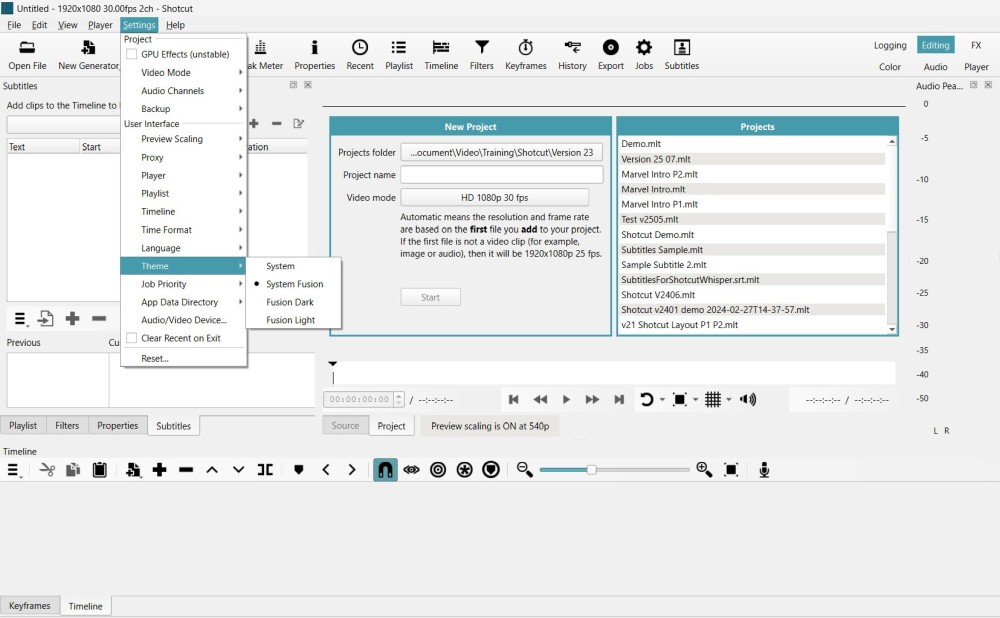
To use this, navigate to View > Themes, Select System Fusion from the list
If you prefer a darker or more colorful workspace, you can switch back to the Fusion dark theme at any time.
Whisper Model Downloader
To keep Shortcut’s installer lightweight, speech-to-text models are now downloaded on demand through the Whisper Model Downloader. You can choose which model you want based on your needs.
If you are using speech to text for the first time, you need to:-
- click on Speech to Text on a clip
- When prompted, click Download Model
- In Settings > Configuration, pick from small, tiny, or large English models
- Wait for the download to complete, then transcribe as usual
Outline Filter
The new Outline filter adds a colored border around text or transparent-background media, giving titles a bold, eye-catching effect.
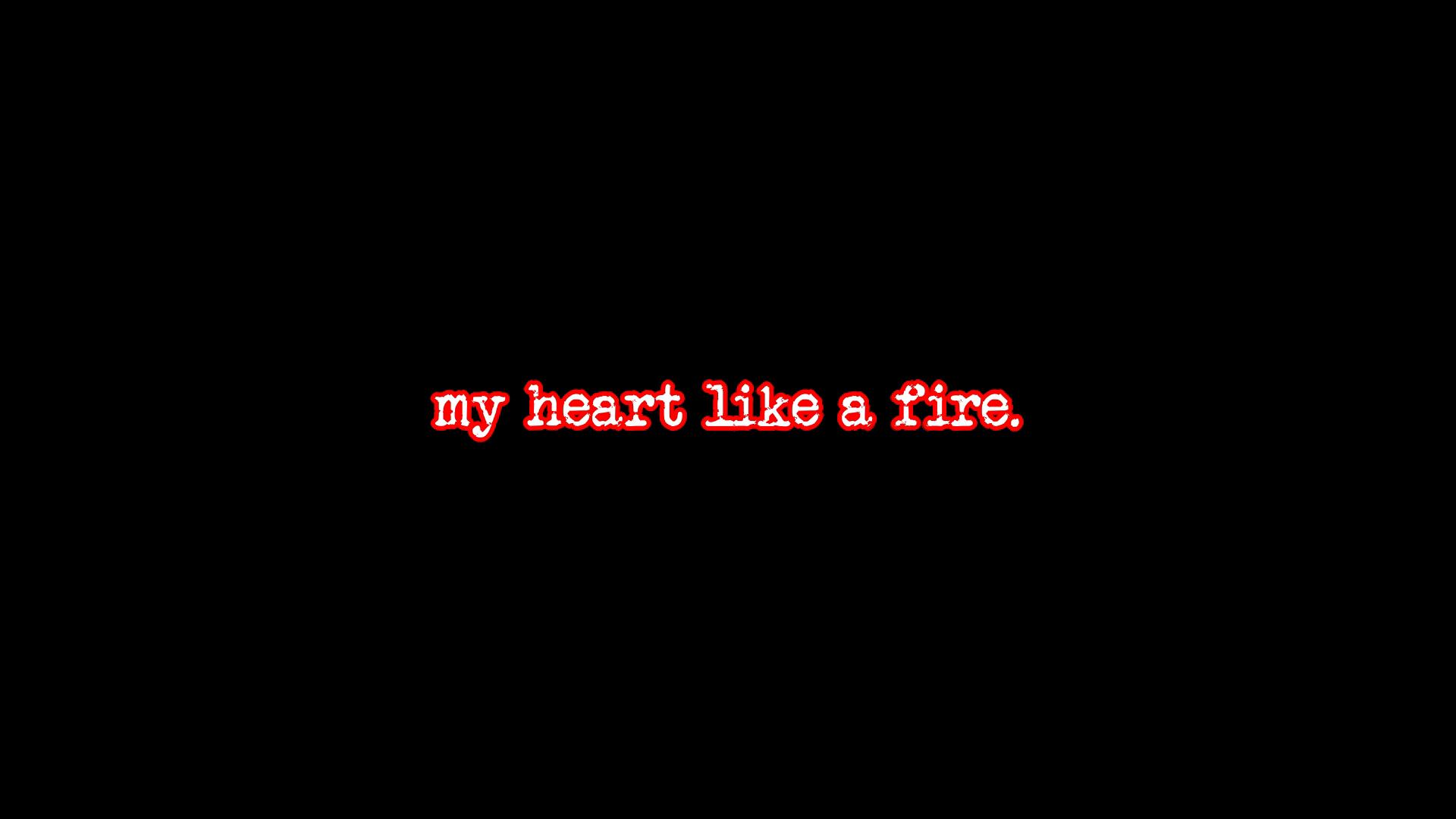
- Select your text clip or graphics item on the timeline
- Click Filters > Add Filter > Outline
- Adjust the border color and thickness to create effects ranging from neon to fire-like glows
Soft Focus Filter

This new filter allows you to create a dreamy, softened look to your footage. It blends subtle blurring and glow to achieve a flattering or ethereal vibe.
- Choose your video clip in the timeline
- Go to Filters > Add Filter > Soft Focus
- Tweak the softness slider to control the level of blur
You can use it to create gentle skin smoothing, romantic atmospheres or stylized dream sequences.
Timeline Audio Adjustment
With this optioned turned On, you can adjust clip-level volume directly on the timeline without opening a separate mixer panel.
- Open Settings > Timeline
- Toggle on Adjust Clip Gain/Volume
- Hover over any audio clip split and drag the volume handle up or down
This feature makes it quick to balance audio levels across multiple edits without leaving the main workspace.
Video Overview
If you prefer video, the following video explains all the above new features and how to use them.
Conclusion and Next Steps
Shortcut 25.07.26 brings meaningful improvements for visual customization, speech-to-text flexibility, and workflow efficiency. If you’re looking to master Shortcut fast, consider enrolling in the official Shortcut Training course.
Happy editing!