Shotcut, has introduced several new features and improvements in its latest version 25.01.25. One of the feature that has been most requested is Bins. Here’s a breakdown of what’s new and how you can make the most of these features.
Organizing Media with Bins
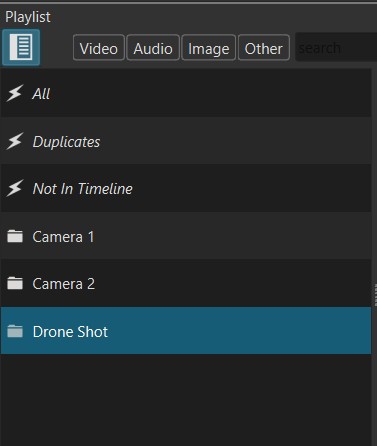
One of the key updates in Shotcut is the ability to organize your media more efficiently using bins. Bins allow you to categorize your files based on type, such as video, audio, or even specific sources like a main camera or drone footage.
Since Shotcut already offers filtering tabs to sort your media, creating custom bins can make your editing process even smoother. For example, you can drag and drop video clips into a “Video Bin” or audio files into an “Audio Bin.” This is especially useful for larger projects where you need to manage multiple types of media.
Another option is to create bins based on source for example if you use multiple cameras, you may want to put different footage in different bins
Using Files and Playlist Together
Shotcut now offers a more intuitive way to manage your files and playlists. With the addition of a Files tab, you can make use this together with bins in the Playlist. (Watch the video below to learn more).
The files tab allows you to access your files without leaving Shotcut and looking for files using your file explorer.
I prefer to move the Files tab to the same side as the Playlist. This way, you can easily view your media files and playlist without moving your mouse across the screen. This makes it easier to access and organize your clips.
You can quickly add videos or audio to your playlist by simply clicking on them in the bin and dragging them into the playlist. This eliminates the need to navigate through your computer’s folders, saving you time and making the editing process more efficient.
New Gradient Filter for Creative Effects
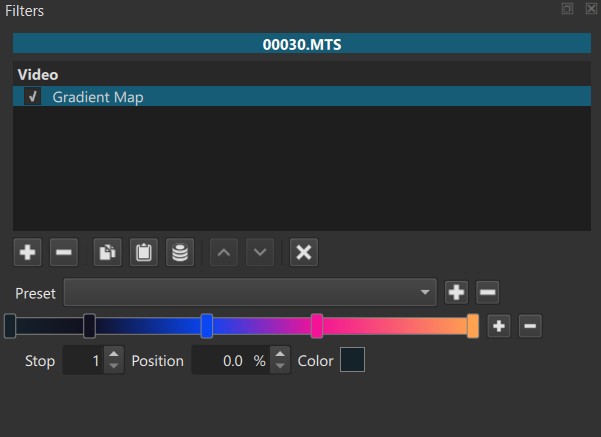
If looking to add creative effects to their videos, Shotcut has introduced a new Gradient Map filter. This filter allows you to apply various color gradients to your footage, creating unique visual styles.
For example, you can simulate an infrared camera effect, giving your video a “Predator” movie like look. The filter comes with 2 default presets “thermal” and “sepia”. You can customize these to suit your needs.
Enhanced Audio Fade Options
Audio editing has also seen improvements. The audio fade-in and fade-out now offers multiple fade types, including:
Natural: A gradual fade that slopes smoothly.
S Curve: A soft start, quick rise, and gradual taper-off.
Fast-Slow: A quick start with a slow taper.
Slow-Fast: A soft start that builds up quickly toward the end.
These new fade options give you more control over how your audio transitions, allowing you to create more dynamic and professional-sounding videos.
Hardware Encoding for ARM-Based CPUs
For users with ARM-based CPUs (common in some newer laptops), Shotcut now supports hardware encoding for video exports. This means faster rendering times when exporting videos. If you’re unsure whether your hardware supports this feature, Shotcut can automatically detect and configure the appropriate settings for you.
Additional Improvements
The latest version of Shotcut also includes several other improvements. Head over to Shotcut’s News page to read all of it.
Conclusion
Shotcut continues to evolve becoming a more user-friendly video editing tool. The software is better equipped than ever to handle a wider range of video projects especially if you are looking for free open source option.
Video Tutorial
If you’re new to Shotcut or want to master its features quickly, consider checking out the official training course .